5400 × 1350 px image · 1 row × 5 columns · PNG output
Result: five 1080 × 1350 px files, with no resizing or edge trimming.
Start with one wide image
This workflow fits a design that spans one extra-wide Canva page. Text, shapes or scenery can continue across the future slide boundaries. A downloaded PNG still contains that entire strip; the splitter turns it into separate files.
Already designed each slide on its own Canva page? Download those pages as separate images instead. You do not need to combine them and split them again. A ZIP from Canva may already contain the individual page images.

Download the practice PNG to follow along, or use your own exported design. This is a different file from the tool’s built-in three-panel sample.
1. Export the wide design from Canva
- Open your design and choose Share → Download.
- Select PNG as the file type. If the document has several pages, select the wide page you want to split.
- Check the export size, then download the image. For this worked example, the actual PNG must be 5400 × 1350 px.
The exported file’s dimensions matter. An export scale change can produce a different size even when the design canvas looks right. Check the dimensions shown after you load the PNG into ImageSplitKit.
Canva’s available export options depend on the design and account. See Canva’s download instructions for its current controls. ImageSplitKit reads JPG, PNG and WebP files; it does not open Canva editing links, PDFs or ZIP archives.
2. Set one row and five columns
- Open ImageSplitKit and select Choose an image. Choose the exported PNG.
- Under Make it yours, set Rows to 1 and Columns to 5. Enter 5 in the Columns field; there is no 1 × 5 preset button.
- Keep Output format set to PNG. Check that the preview says 5 tiles of 1080 × 1350 px and No cropping needed.
- Select Split image. The result is ready when the download links appear.
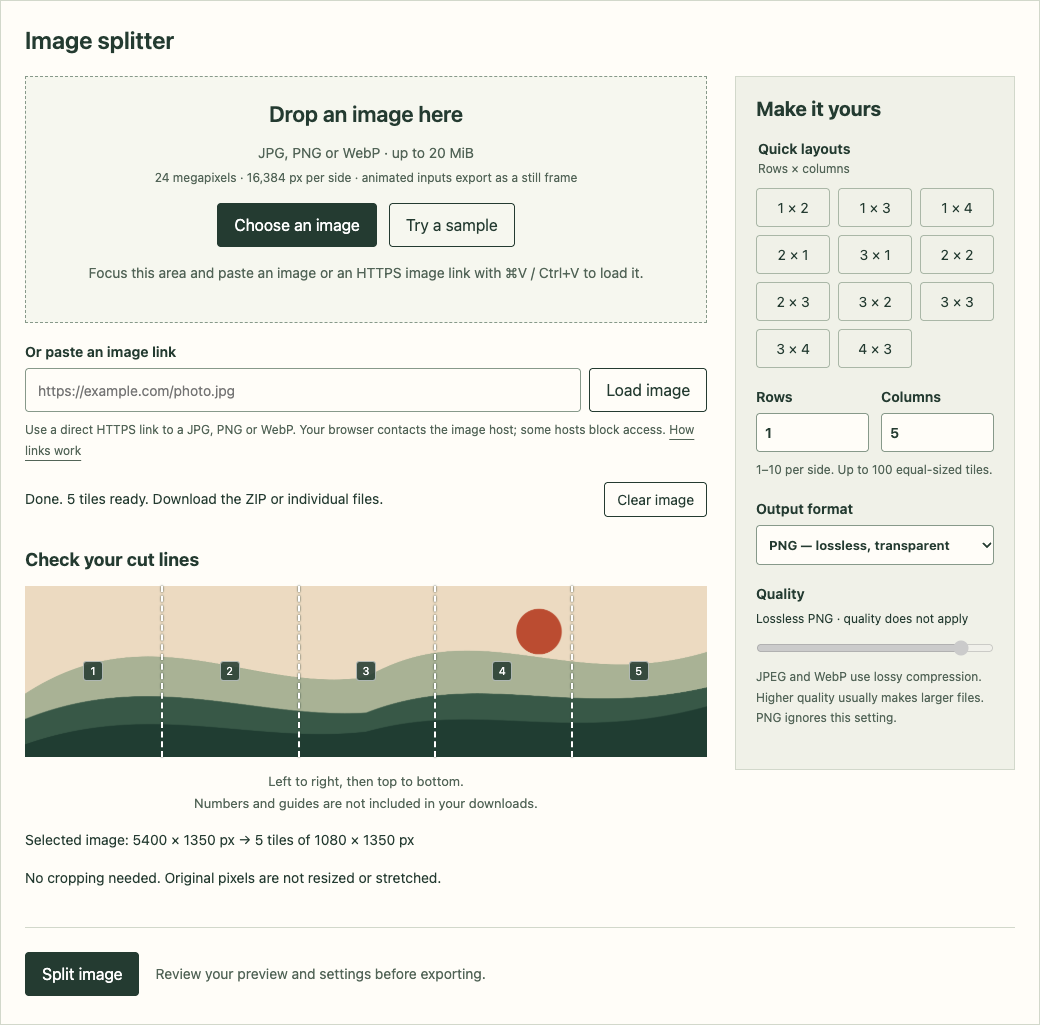
Rows divide the height; columns divide the width. The calculation is 5400 ÷ 5 = 1080 and 1350 ÷ 1 = 1350. This example produces 4:5 panels. Choose the dimensions that suit your intended destination; the splitter does not automatically adapt an image to a social platform.
3. Download the panels in order
Select Download all 5 as ZIP, or download each tile individually. Extract the ZIP before selecting images in your publishing app. Files are numbered left to right: the first ends in 001-r01-c01.png, the fifth in 005-r01-c05.png.





These are the actual five PNGs from the verified ZIP download. The guides and preview numbers are not written onto the exported images. PNG export does not introduce another lossy compression step.
For a continuous sequence, arrange the files from 001 through 005. Check the publishing app’s final preview: its own cropping can break the alignment. A carousel sequence and a profile-grid arrangement are different tasks; this guide covers the sequence only.
Why do my results look different?
- I got horizontal strips instead of slides.
- Check that Rows is 1 and Columns is 5. Swapping those values divides the image’s height instead.
- The export is 2160 × 2700 per panel.
- Your source is likely 10800 × 2700. Five equal cuts preserve that resolution. Export the intended dimensions from Canva if you need exactly 1080 × 1350 per panel.
- The tool asks me to confirm cropping.
- The source does not divide evenly into the grid. For example, a 5402 × 1350 image split into five columns leaves 2 pixels on the right. ImageSplitKit trims that remainder after confirmation. Correct the source dimensions first if every edge pixel matters.
- I need square slides instead.
- For five 1080 × 1080 panels, prepare a 5400 × 1080 source. Splitting a 5400 × 1350 source does not turn its panels into squares.
- Can I use a Canva share link in the image-link box?
- A Canva design link is a webpage, not a direct image file. Download the PNG and select that file. Direct image links must use HTTPS, return a supported image and allow browser access.
- My image is too large.
- The tool accepts up to 20 MiB, 24 million decoded pixels and 16,384 pixels per side. This example is 7.29 million pixels. Reduce the source dimensions in your design workflow if you exceed a limit.
Before you publish
- Open the first and last files and check their dimensions.
- Make sure important text does not land awkwardly on a cut line.
- Keep the files in order and inspect the destination app’s crop preview.
Your image is processed in your browser. Optional analytics and other page requests are described in the Privacy Policy. ImageSplitKit is an independent tool and is not affiliated with Canva.
Need a different grid? See the tile size examples or send feedback about your task.